General
How to Configure Platform Settings in the General Menu
This guide explains how to configure critical platform settings, including Base URL, Extra environment variables, and more, through the General menu in the VeeCode Admin UI.
Steps
Step 1: Access the General Menu
- Open the Admin UI: Navigate to the General menu to access a range of configuration options.
- Key Settings:
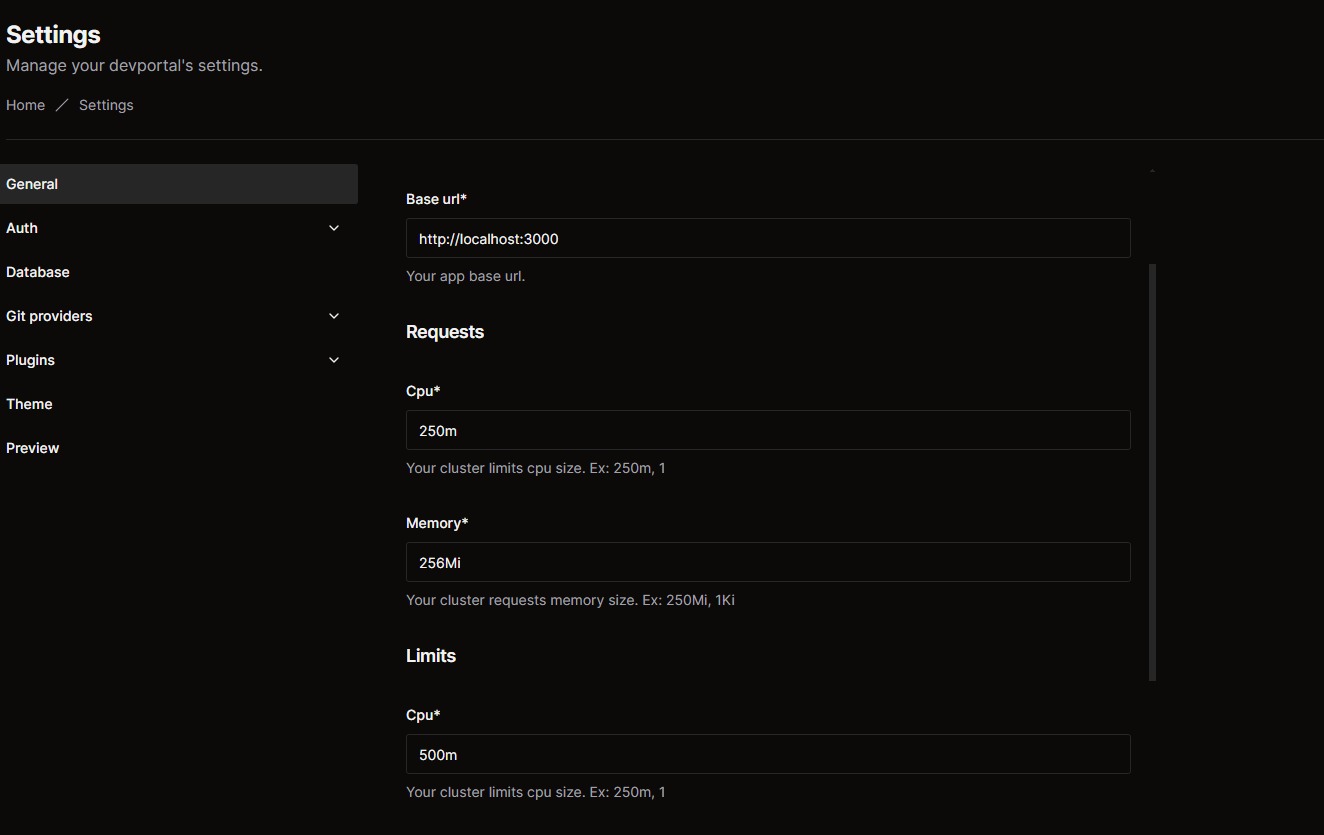
- Base URL: Set the base URL for your application to ensure proper communication with services.
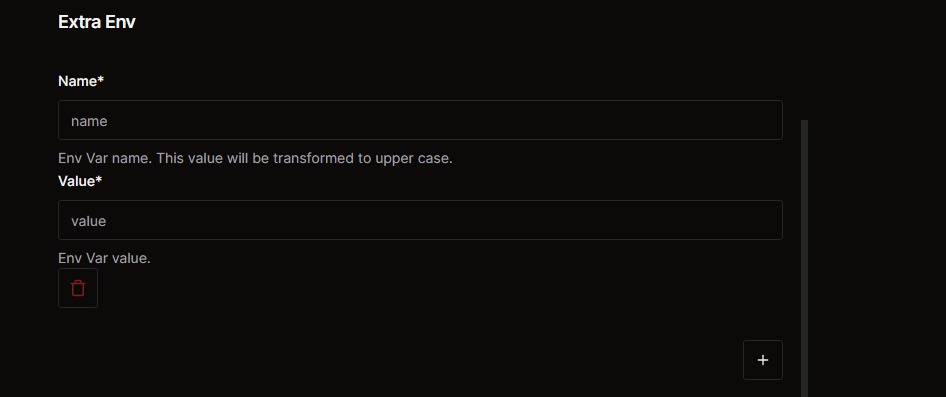
- Extra Envs: In the Extra envs field, you can define additional environment variables for the application as needed.
Step 2: Fill in the Required Information
- Enter the necessary details for the settings you wish to configure, such as CPU capacity, update frequency, or extra environment variables.
Step 3: Preview the Configurations
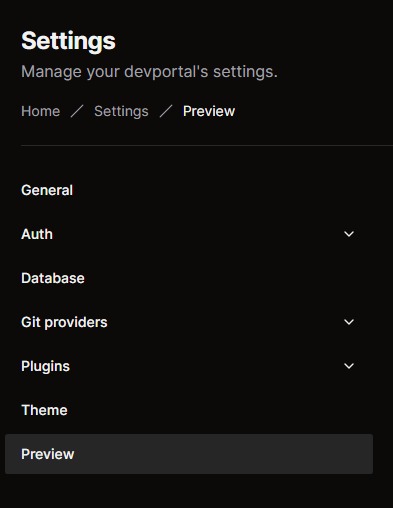
- After filling out the fields, click on "Preview" in the left-hand menu to review all the changes.
Step 4: Apply and Redeploy
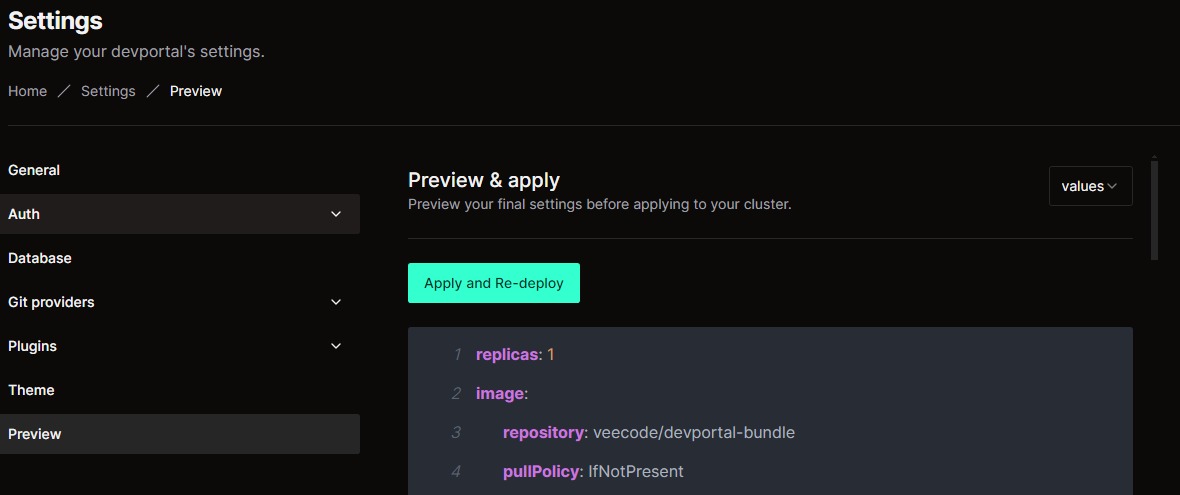
- On the Preview page, verify the information, then click on "Apply and Re-deploy" to apply the new settings and redeploy the application with the updated configurations.